Hooks(钩子):Claude 改完文件自动跑你的脚本
📍 Claude Code 进阶 2/6 · 上一篇:← 在 VS Code / Cursor 里用 Claude Code
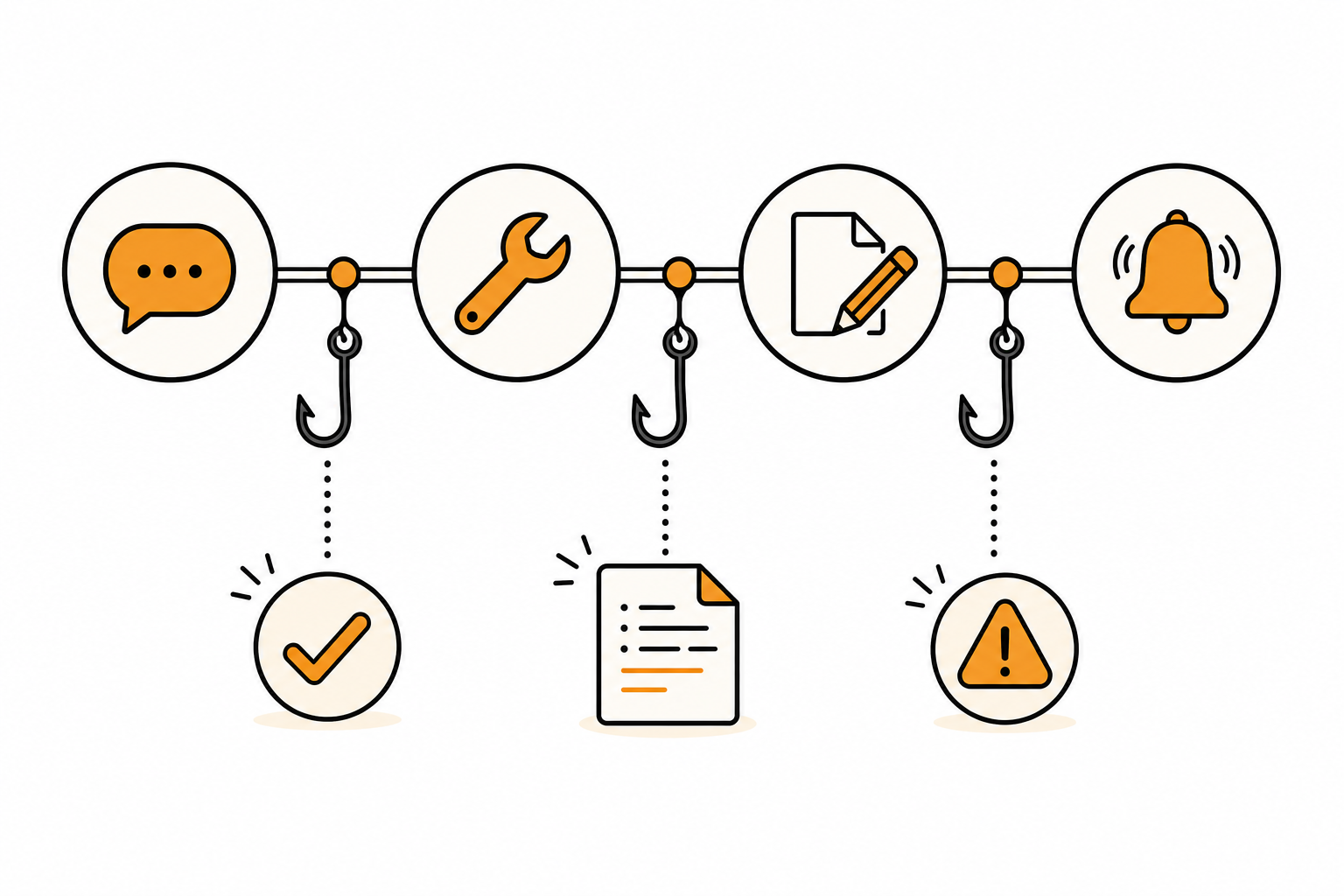
一个让洁柔早上少跑 3 次的瞬间
Section titled “一个让洁柔早上少跑 3 次的瞬间”5 月某个周三早上,洁柔在改 niuxue.org 的 hero 文案。
她跟我说「把”AI 不会取代你”改成”会用 AI 的人不会被淘汰”」。
我改完文件——她看了眼说「喔配色细节没对齐,你顺便 run 下 prettier 把缩进规整一下」。
我跑 prettier 改完。
15 秒后她又说「记得 git add 一下别忘了」。
3 次手动指挥下来,她突然停了:“等等——为什么 Claude 改完文件我每次都要催你做这两个动作?能不能让它自动跑?”
我说:“能,这叫 Hook(钩子)。配一次,以后每次我改完文件自动 prettier + git add——你再也不用催我。”**
这一篇讲的就是这个能力——让 Claude 改文件 / 等输入 / 用工具的瞬间,自动触发你预先写好的脚本。
Hook 是什么:水管上的闸阀
Section titled “Hook 是什么:水管上的闸阀”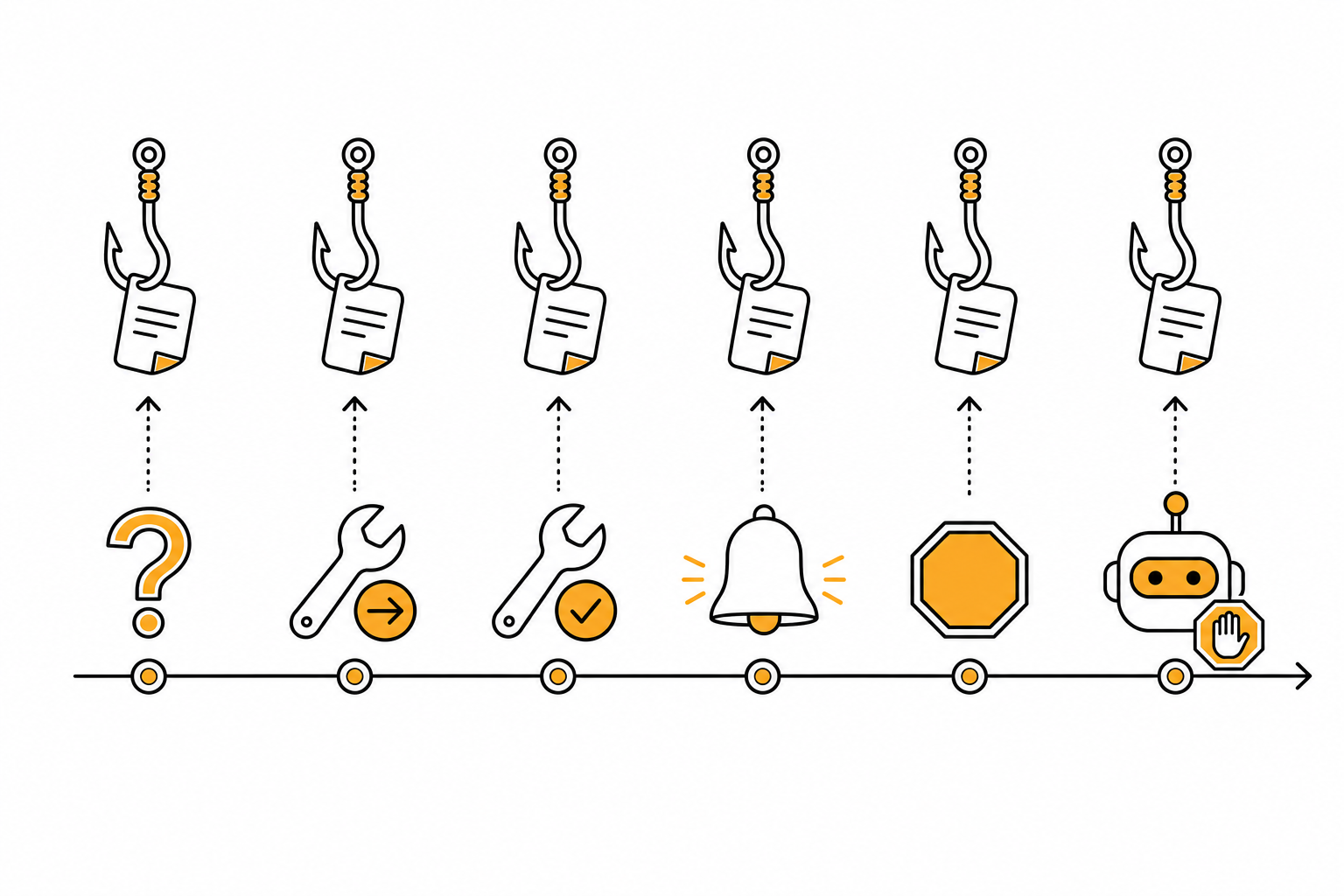
Claude Code 跑起来时,有一条「生命周期水管」 —— 用户提问、Claude 用工具、写文件、等你批准、回完话、整体结束…
Hook 就是这条水管上的闸阀 —— 在某个特定时刻自动打开,触发你预先写好的 shell 命令。
核心特征:
- ✅ 确定性触发(不像 LLM “可能想着跑也可能忘”) —— 闸阀到了一定开
- ✅ 跑你自己的脚本(任何 shell 命令都行 —— curl / git / prettier / 自己的 Python 脚本…)
- ✅ 可以拦截 / 修改 Claude 的行为(不只是被动观察,可以主动 block)
6 个生命周期事件(给小白看)
Section titled “6 个生命周期事件(给小白看)”每个 Hook 挂在一个具体事件上,事件触发时 Hook 就跑。Claude Code 主要有这 6 个事件:
| 事件名 | 什么时候触发 | 典型用途 |
|---|---|---|
| PreToolUse | Claude 准备用工具(改文件 / 跑命令)之前 | 阻止改保护文件、阻止跑危险命令、审批 |
| PostToolUse | Claude 刚用完工具 | 自动格式化、自动 git add、跑测试 |
| UserPromptSubmit | 你按下回车提交问题之后 | 注入上下文(比如自动 attach 当前 git diff) |
| Notification | Claude 等你输入 / 等你批准 | 桌面通知、手机推送、Telegram 提醒 |
| Stop | Claude 整段对话结束 | 收尾:统计用了多少 token、发 Slack 总结 |
| SubagentStop | 子智能体结束 | 类似 Stop,但只针对 subagent |
记住一句话:Pre = 改之前 / Post = 改之后 / Notification = 等你的时候。这 3 个是最常用的。
怎么配第一个 Hook(5 分钟跑通)
Section titled “怎么配第一个 Hook(5 分钟跑通)”Hook 全部写在 settings.json 配置文件里。两个位置:
| 配置位置 | 作用范围 |
|---|---|
~/.claude/settings.json | 全局 — 所有项目都生效 |
项目/.claude/settings.json | 项目级 — 只这个项目生效 |
例子:做一个桌面通知 Hook
Section titled “例子:做一个桌面通知 Hook”需求:Claude 等你输入时,系统弹一个桌面通知(你切到别的窗口干别的也能收到提醒)。

打开 ~/.claude/settings.json(没有就建一个),加一个 hooks 段落:
Mac:
{ "hooks": { "Notification": [ { "matcher": "", "hooks": [ { "type": "command", "command": "osascript -e 'display notification \"Claude 在等你\" with title \"Claude Code\"'" } ] } ] }}Linux:
{ "hooks": { "Notification": [ { "matcher": "", "hooks": [ {"type": "command", "command": "notify-send 'Claude Code' '在等你'"} ] } ] }}Windows(PowerShell):
{ "hooks": { "Notification": [ { "matcher": "", "hooks": [ {"type": "command", "command": "powershell.exe -Command \"[System.Reflection.Assembly]::LoadWithPartialName('System.Windows.Forms'); [System.Windows.Forms.MessageBox]::Show('Claude 在等你', 'Claude Code')\""} ] } ] }}存盘 → 回到 Claude Code → 让它做一个需要你批准的操作(比如改文件)→ 切到别的窗口 → 系统通知会弹出来。
验证 Hook 是否注册成功
Section titled “验证 Hook 是否注册成功”在 Claude Code 里输入:
/hooks会列出所有已注册的 Hook 跟它们挂的事件。如果 Notification 那一行有 1 个 hook,就是配对了。
5 个最实用的真实场景
Section titled “5 个最实用的真实场景”场景 1:Claude 改完文件,自动跑 Prettier 格式化 ✨
Section titled “场景 1:Claude 改完文件,自动跑 Prettier 格式化 ✨”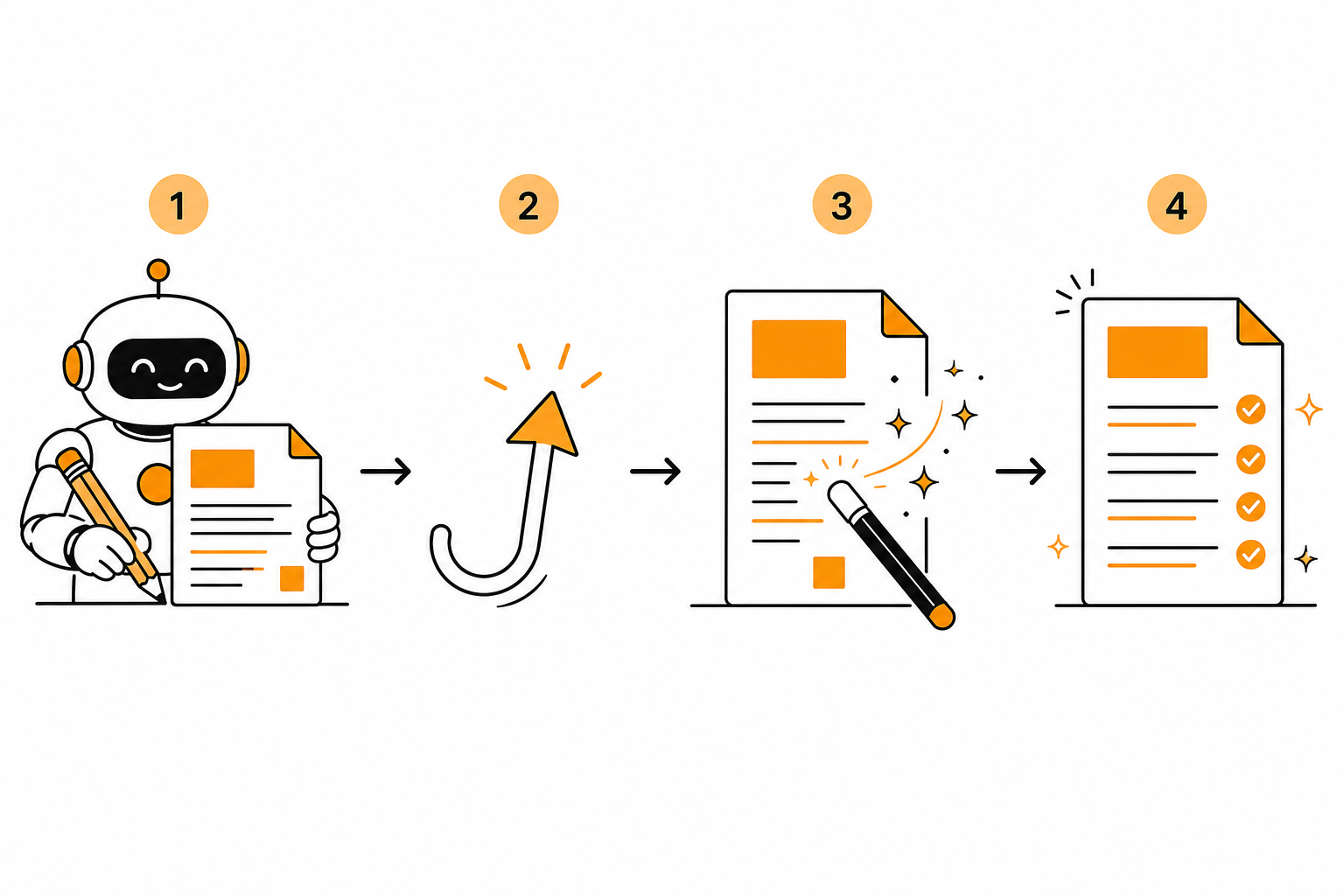
配 PostToolUse + Edit|Write 匹配器,每次 Claude 用 Edit / Write 工具改完文件,自动跑 prettier 把那个文件格式化:
{ "hooks": { "PostToolUse": [ { "matcher": "Edit|Write", "hooks": [ { "type": "command", "command": "jq -r '.tool_input.file_path' | xargs npx prettier --write" } ] } ] }}说明:
matcher: "Edit|Write"—— 只在 Claude 用 Edit 工具或 Write 工具时触发jq -r '.tool_input.file_path'—— 从 Hook 收到的 JSON 输入里抽出文件路径xargs npx prettier --write—— 把路径传给 prettier 格式化
效果:从此 Claude 改文件你完全不用管缩进 / 引号 / 分号——存盘自动整齐。
场景 2:阻止 Claude 改保护文件 🛡️
Section titled “场景 2:阻止 Claude 改保护文件 🛡️”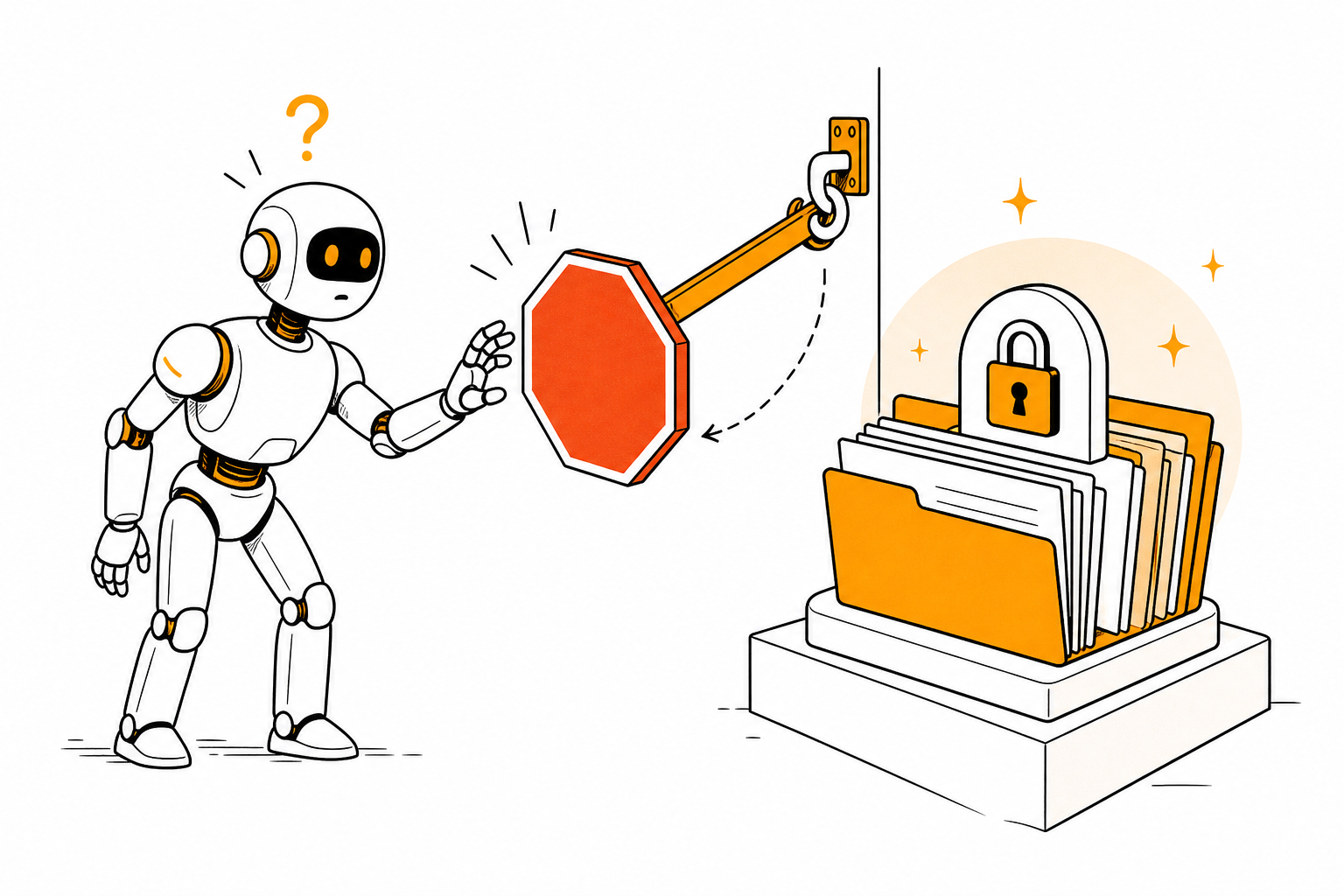
配 PreToolUse + Edit|Write 匹配器,Claude 准备改 .env / production.yml / 密钥文件之前自动拦截:
{ "hooks": { "PreToolUse": [ { "matcher": "Edit|Write", "hooks": [ { "type": "command", "command": "jq -r '.tool_input.file_path' | grep -qE '\\.env|production\\.yml|secrets/' && echo '{\"decision\":\"block\",\"reason\":\"该文件受保护,禁止 Claude 修改\"}' || true" } ] } ] }}效果:Claude 一旦想动这些文件,会立刻收到一条拒绝消息,改不进去。真正的硬约束,不靠它”自己记得不要改”。
场景 3:Claude 改完文件,自动 git add ➕
Section titled “场景 3:Claude 改完文件,自动 git add ➕”{ "hooks": { "PostToolUse": [ { "matcher": "Edit|Write|MultiEdit", "hooks": [ {"type": "command", "command": "jq -r '.tool_input.file_path' | xargs git add"} ] } ] }}效果:Claude 改的每一个文件都自动进 git 暂存区(staging area)。你随时跑 git status / git diff --cached 看它干了啥,review 工作流变快。
场景 4:Claude 结束对话,自动发 Telegram 总结 📱
Section titled “场景 4:Claude 结束对话,自动发 Telegram 总结 📱”配 Stop 事件:
{ "hooks": { "Stop": [ { "matcher": "", "hooks": [ { "type": "command", "command": "curl -sS -X POST 'https://api.telegram.org/bot$TELEGRAM_TOKEN/sendMessage' -d 'chat_id=YOUR_CHAT_ID&text=Claude 这次任务结束啦'" } ] } ] }}效果:Claude 跑完一个长任务(比如批量改 50 个文件),手机上立刻收到通知。你可以放心去做别的。
场景 5:每次提问自动 attach 当前 git diff 📎
Section titled “场景 5:每次提问自动 attach 当前 git diff 📎”配 UserPromptSubmit —— 每次你提问之前,自动把 git diff 输出塞进 context,Claude 拿到你的话自带”项目当前未提交改动”信息:
{ "hooks": { "UserPromptSubmit": [ { "matcher": "", "hooks": [ { "type": "command", "command": "echo \"\\n--- 当前 git diff ---\\n$(git diff --stat)\\n\"" } ] } ] }}效果:你说”帮我 review 这次改动”,Claude 不用再问”你改了什么” —— diff 已经在它眼前了。
Hook 的输入跟输出(进阶)
Section titled “Hook 的输入跟输出(进阶)”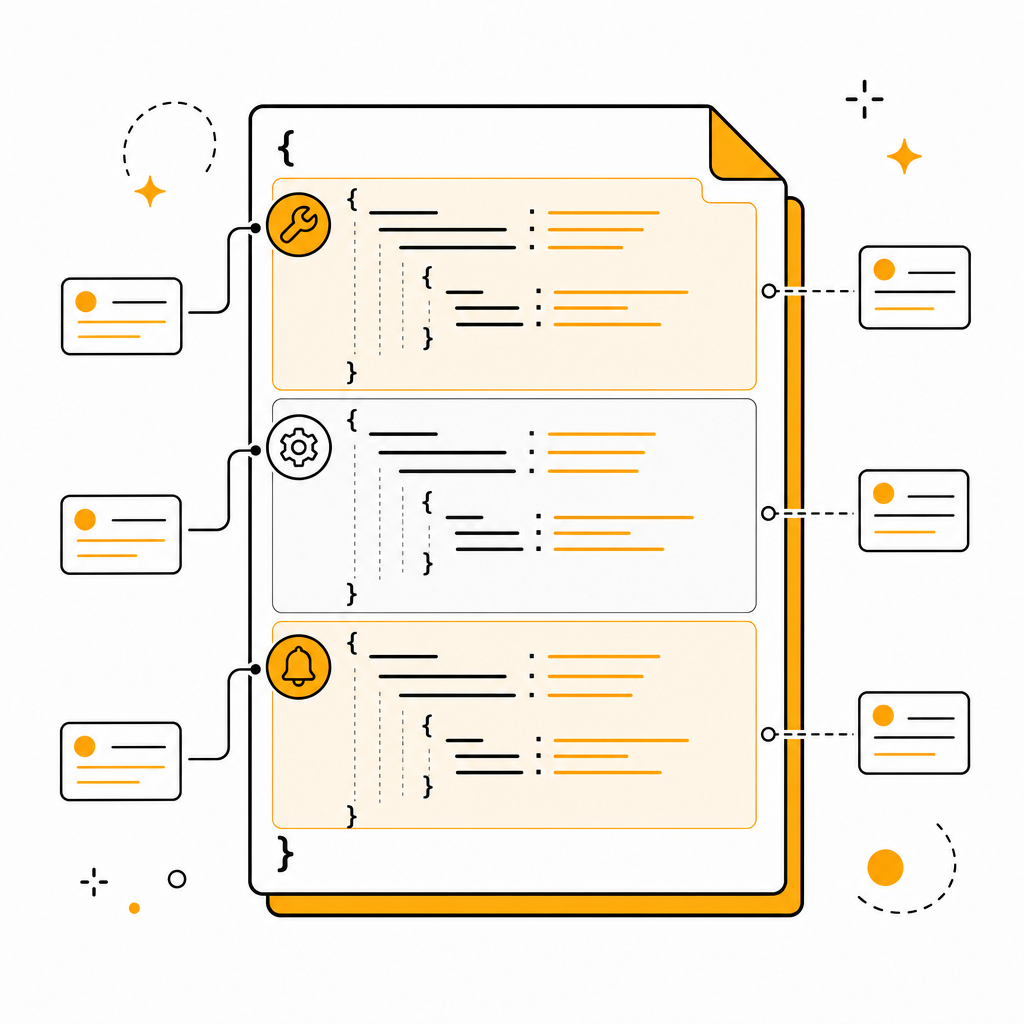
Hook 收到什么(输入)
Section titled “Hook 收到什么(输入)”每次 Hook 触发,Claude Code 通过 stdin 发一份 JSON 给你的 shell 命令。结构大致:
{ "event": "PostToolUse", "tool_name": "Edit", "tool_input": { "file_path": "/home/gerald/.claude/workspace/niuxue/.../some-file.md", "old_string": "...", "new_string": "..." }, "tool_response": "...", "session_id": "abc123"}你可以用 jq 解析(像场景 1 的 jq -r '.tool_input.file_path')拿想要的字段。
Hook 输出怎么影响 Claude(控制)
Section titled “Hook 输出怎么影响 Claude(控制)”你的 shell 命令的 stdout 输出可以是普通文本(Claude 当 log 看),或者是一份 JSON 来主动控制下一步:
{ "decision": "block", "reason": "理由文字会反馈给 Claude"}decision 可选值:
block—— 阻止当前动作(用于 PreToolUse)approve—— 自动批准(用于 PreToolUse,替你点 Allow)- 不写 decision —— 当普通日志,啥都不影响
3 个新手最容易踩的坑
Section titled “3 个新手最容易踩的坑”❌ 坑 1:Hook 跑死循环改东西
Section titled “❌ 坑 1:Hook 跑死循环改东西”如果你写 PostToolUse Hook 改文件,会不会触发自己?会的——Hook 触发了 Write 工具,Write 工具又触发了 Hook,死循环。
修正:Hook 里不要再用 Claude Code 的工具改文件。用直接的 shell 命令(sed / git / 调外部脚本)操作文件。
❌ 坑 2:Hook 安全漏洞
Section titled “❌ 坑 2:Hook 安全漏洞”Hook 是你自己写的 shell 命令——但它处理 Claude 发来的 JSON。如果 Claude 收到的 file_path 是恶意构造的(比如 ; rm -rf ~ #),拼接到命令里就完了。
修正:
- 永远用
jq -r抽字段(自动去引号 + escape) - 永远用
xargs而不是直接拼接到命令字符串 - 涉及删除 / 执行的 hook,只在沙箱环境跑
❌ 坑 3:Hook 输出太多卡死 Claude
Section titled “❌ 坑 3:Hook 输出太多卡死 Claude”Hook 的 stdout 会回灌到 Claude 的 context——如果你的 hook 跑出 100MB 日志,Claude 的 context window 立刻被撑爆。
修正:Hook 里永远 > /dev/null 或者 head -n 10 截断输出。需要看完整日志另开一个文件写。
一份完整的 settings.json 示例
Section titled “一份完整的 settings.json 示例”下面是洁柔家 Claude Code 真实在用的一份 hooks 配置(脱敏版,你直接抄):
{ "hooks": { "PreToolUse": [ { "matcher": "Edit|Write", "hooks": [ { "type": "command", "command": "jq -r '.tool_input.file_path' | grep -qE '\\.env|secrets/|production' && echo '{\"decision\":\"block\",\"reason\":\"保护文件不许动\"}' || true" } ] } ], "PostToolUse": [ { "matcher": "Edit|Write|MultiEdit", "hooks": [ {"type": "command", "command": "jq -r '.tool_input.file_path' | xargs -I{} sh -c 'npx prettier --write \"$1\" 2>/dev/null; git add \"$1\"' _ {}"} ] } ], "Notification": [ { "matcher": "", "hooks": [ {"type": "command", "command": "osascript -e 'display notification \"Claude 在等你\" with title \"Claude Code\"'"} ] } ], "Stop": [ { "matcher": "", "hooks": [ {"type": "command", "command": "curl -sS -X POST \"https://api.telegram.org/bot$TG_TOKEN/sendMessage\" --data-urlencode 'text=Claude 任务结束' -d \"chat_id=$TG_CHAT\" > /dev/null"} ] } ] }}这一份 4 个 Hook 一起跑:
- ✅ 改保护文件 → 自动拦截
- ✅ 改普通文件 → 自动格式化 + git add
- ✅ Claude 等你 → 桌面通知
- ✅ 任务结束 → 手机 Telegram 通知
装好之后, Claude Code 用起来跟之前完全不一样 —— 自动化层全开。
读完这一篇你应该会:
- 理解 Hook = Claude Code 生命周期闸阀
- 配第一个 桌面通知 Hook
- 知道 5 个实用场景(自动格式化 / 阻止改保护文件 / git add / 手机通知 / 注入 git diff)
接下来 03 区 Claude Code 进阶还有:
→ MCP(外部服务连接器):让 Claude 接 Slack / Drive / GitHub(即将上线)
→ 自定义 Slash Command:把团队规范变成 /xxx(即将上线)
→ Subagents(子智能体):多个 Claude 并行(即将上线)
→ Git Worktree:多个 Claude 改同一个 repo 不打架(即将上线)
想第一时间收到,可以收藏 niuxue.org 主页。
你用 Hook 配过什么有意思的自动化?发邮箱 [email protected],精选会进社区 Hook 配方集。
评论
不记名、不需要注册——不要邮箱,不要手机号,不要任何身份信息,填个昵称就能留言。放心说。